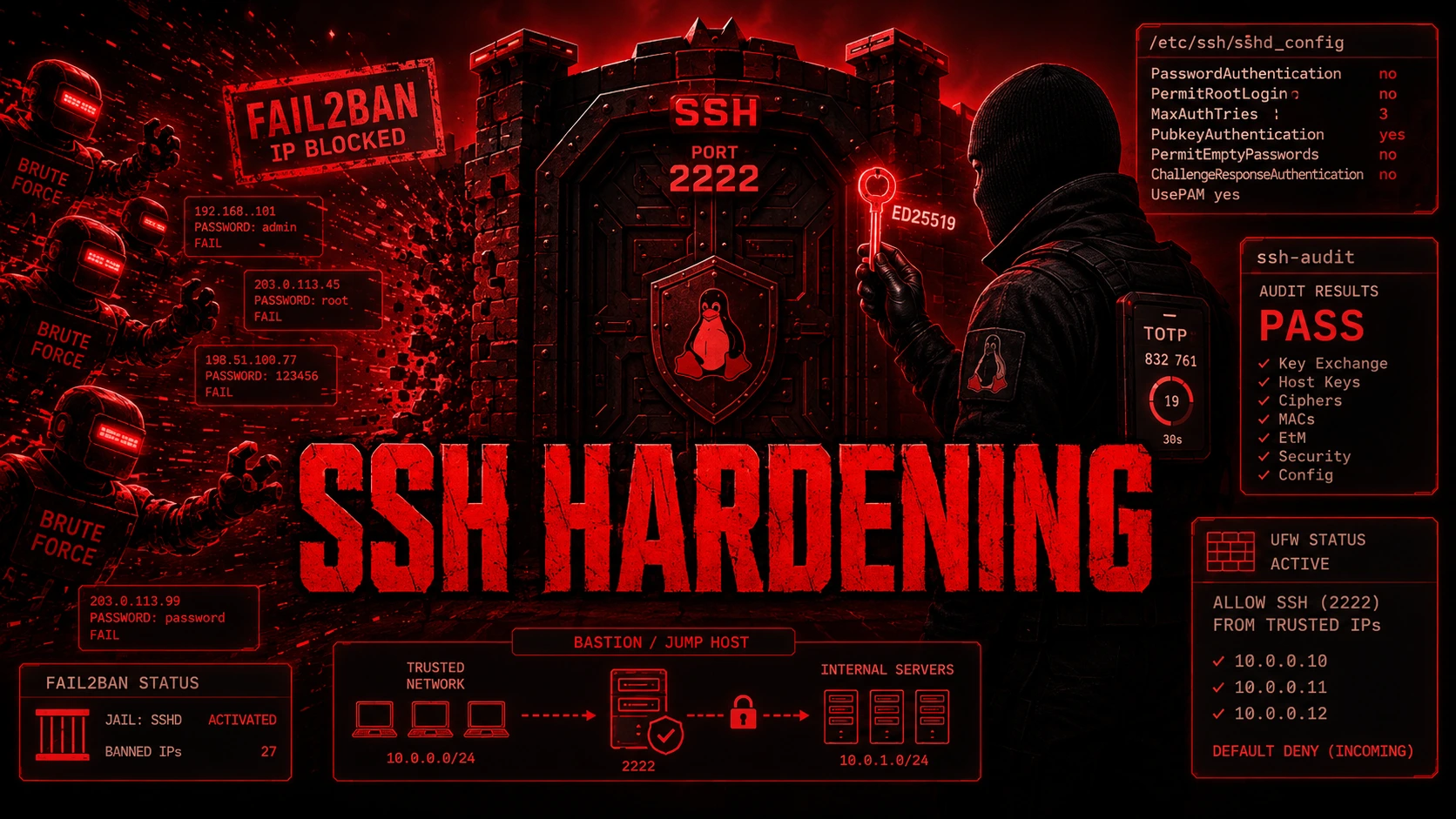
SSH Hardening on Linux: sshd_config, Ed25519 and Fail2Ban

SSH hardening on Linux: Configure sshd_config, Ed25519, Fail2Ban, UFW, and 2FA keys; verify algorithms and logins with ssh-audit; and create a jump host.
- Posted on 2026-08-19
- Reading time: 9 min
SSH Hardening Linux: A Complete Guide to OpenSSH, Keys, 2FA, and Fail2Ban #
An SSH server directly exposed to the internet is normally subject to automatic scans and authentication attempts—it's not a matter of if, but when. A properly configured SSH turns these attempts into harmless background noise.
This guide covers complete SSH hardening from a security professional’s perspective: each setting explained with the “why,” plus the pentester’s perspective —what an auditor tests during an SSH security assessment.
Prerequisites: Root access to the server. Companion article on Linux Privilege Escalation — Once inside a system, the SSH configuration is among the first persistence vectors an attacker looks for.
What a Pentester Checks During an SSH Security Assessment #
Before hardening, understand what security testers look for. These are the standard checks in an SSH security assessment:
# 1. Versione OpenSSH (cerca CVE specifiche)
ssh -V
nmap -sV -p 22 target.com

# 2. Algoritmi supportati (cerca algoritmi deboli)
nmap -p22 --script ssh2-enum-algos target.com
# Cerca: 3des-cbc, arcfour, diffie-hellman-group1 → tutti deboli

# 3. Host key del server
nmap -p22 --script ssh-hostkey target.com

# 4. Verifica se il server supporta ancora SSHv1 (obsoleto e vulnerabile)
nmap -p22 --script sshv1 target.com

# 5. Metodi di autenticazione supportati
nmap -p22 --script ssh-auth-methods target.com

# 6. Brute force test (solo se autorizzato esplicitamente)
hydra -l root -P /usr/share/wordlists/rockyou.txt ssh://target.com
hydra -L users.txt -P passwords.txt ssh://target.com -t 4

# 7. Tool di audit dedicato
pip install ssh-audit
ssh-audit target.com
Note:
ssh-auth-methodsIt is classified as a script intrusive from Nmap because it starts a real authentication attempt. If the script showspasswordAmong the supported methods, it means that password authentication It is supported by the server —not that it's automatically exploitable. Check whether it's really necessary and whether there are controls against password guessing (rate limiting, Fail2Ban, MFA) before marking it as a critical finding.
The most common findings in an SSH audit:
- Password authentication enabled
- Root login allowed
- Weak cryptographic algorithms (3DES, arcfour, diffie-hellman-group1)
- MaxAuthTries high
- Absence of warning banners
- Old SSH keys (1024-bit RSA)
- SSH exposed on all interfaces instead of just the one needed
Generate and Configure SSH Keys Ed25519 #
Before touching sshd_config, generates the correct keys on the client. These are keys from theuser, for authentication — other than the host keys the server already has under /etc/ssh/ssh_host_* to identify themselves to customers.
Ed25519 vs RSA:
| Ed25519 | RSA 4096 | |
|---|---|---|
| Safety | Equivalent | Equivalent |
| Public key size | Much shorter | Much longer |
| Swift | ★ ★ ★ ★ ★ | ★★★ |
| Compatibility | OpenSSH 6.5+ (2014) | Universal |
| Recommended 2026 | ✅ Yes | If legacy is needed |
# Sul CLIENT (non sul server)

# Genera chiave Ed25519 (preferita)
ssh-keygen -t ed25519 -C "commento-descrittivo-2026"

# Con numero di rounds KDF (maggiore = più lento per attacchi offline sulla chiave cifrata)
ssh-keygen -t ed25519 -a 100 -C "server-prod-2026"

# RSA 4096 (se devi supportare sistemi legacy)
ssh-keygen -t rsa -b 4096 -C "legacy-compat-2026"

# Le chiavi vengono salvate in:
# ~/.ssh/id_ed25519      (privata — non condividere MAI)
# ~/.ssh/id_ed25519.pub (pubblica — va sul server)# Copia la chiave pubblica sul server
ssh-copy-id -i ~/.ssh/id_ed25519.pub user@server
# Oppure manualmente
cat ~/.ssh/id_ed25519.pub | ssh user@server "mkdir -p ~/.ssh && cat >> ~/.ssh/authorized_keys && chmod 600 ~/.ssh/authorized_keys"
# Verifica che funzioni PRIMA di disabilitare le password
ssh -i ~/.ssh/id_ed25519 user@serverGolden rule: Always test keyed login in a separate session before disabling passwords. If you break authentication and close the current session, you'll be locked out of the server.
sshd_config: Secure SSH Configuration #
The central file is /etc/ssh/sshd_config. Before any changes:
# SEMPRE backup prima di modificare
sudo cp /etc/ssh/sshd_config /etc/ssh/sshd_config.bak

# Testa sintassi dopo ogni modifica (prima di riavviare!)
sudo sshd -t

# Verifica configurazione effettiva (include i default)
sudo sshd -T | grep -E 'passwordauthentication|kbdinteractiveauthentication|pubkeyauthentication|permitrootlogin|maxauthtries|allowusers|allowgroups'

# Applica le modifiche: reload se possibile, restart se necessario
sudo sshd -t && sudo systemctl reload ssh    # Ubuntu/Debian, meno disruptivo
sudo sshd -t && sudo systemctl restart ssh   # se reload non basta
sudo sshd -t && sudo systemctl restart sshd  # RHEL/CentOS/Arch
Disable Password Authentication #
This is the most important change. A technical detail that's often mistaken: ChallengeResponseAuthentication is an alias that has been deprecated in modern versions of OpenSSH. The correct parameter today is KbdInteractiveAuthentication.
# Autenticazione: solo chiavi pubbliche
PasswordAuthentication no
KbdInteractiveAuthentication no
PubkeyAuthentication yes

# Dove sono le chiavi autorizzate
AuthorizedKeysFile .ssh/authorized_keys
KbdInteractiveAuthentication It's not just “password by another name” — it's a distinct authentication method (keyboard-interactive) that PAM can use to ask for a password, but also for an OTP code or other. For this reason, it should be disabled here only if immense you use PAM/2FA — if you later set up TOTP, it will revert to yes because the code is requested via keyboard-interactive.
Disable Root Login and Restrict Users #
# NO login diretto come root — usa utente normale + sudo
PermitRootLogin no

# Permetti SSH solo a utenti specifici
AllowUsers mario deploy backup
# Oppure per gruppo
# AllowGroups sshusers
Limit Forwarding and Tunneling #
Port forwarding can be a useful tool for an attacker who already has access, for pivoting or exfiltration. If the account only needs to log in and doesn't require forwarding:
X11Forwarding no
AllowAgentForwarding no
AllowTcpForwarding no
PermitUserEnvironment no

# In alternativa/insieme a policy più granulari, sulle versioni che lo supportano:
# DisableForwarding yes
Attempts, Timeouts and Door #
# Cambia da 22 a porta non standard. Riduce significativamente il rumore
# degli scanner automatici che puntano solo alla 22 — non è però una
# misura di sicurezza primaria: uno scanner può trovare SSH su qualsiasi porta.
Port 2222

AddressFamily inet

# Max tentativi prima della disconnessione
MaxAuthTries 3
MaxSessions 10

# Timeout per completare il login
LoginGraceTime 30

# Disconnetti client inattivi
ClientAliveInterval 300
ClientAliveCountMax 3
Cryptographic Algorithms #
Don't treat this list as static and definitive: start from the algorithms supported by the OpenSSH version actually installed and explicitly remove the legacy/weak ones, checking with ssh-audit (section below) instead of copying a list without checking its compatibility with your version.
# Esempio di partenza — verifica compatibilità con la tua versione OpenSSH
Ciphers chacha20-poly1305@openssh.com,aes256-gcm@openssh.com,aes128-gcm@openssh.com,aes256-ctr,aes192-ctr,aes128-ctr

MACs hmac-sha2-512-etm@openssh.com,hmac-sha2-256-etm@openssh.com,umac-128-etm@openssh.com

KexAlgorithms curve25519-sha256,curve25519-sha256@libssh.org,diffie-hellman-group16-sha512,diffie-hellman-group18-sha512

# HostKeyAlgorithms controlla quali algoritmi il client può usare per
# autenticare la host key del server — non genera né sceglie la chiave
# sul filesystem, quella è governata dalle direttive HostKey
HostKeyAlgorithms ssh-ed25519,rsa-sha2-512,rsa-sha2-256
Banners, Logging and Other Options #
Banner /etc/ssh/banner.txt

LogLevel VERBOSE
SyslogFacility AUTH

# Opzione legacy/compatibilità, non tra le misure di hardening principali
# sulle versioni moderne — evita solo un lookup DNS per connessione
UseDNS no

# Di default OpenSSH ha Compression yes. Disabilitarla riduce una
# superficie non necessaria quando non serve, ma il beneficio reale
# riguarda soprattutto scenari di port forwarding con traffico misto
# trusted/untrusted — non è un hardening obbligatorio generico
Compression no

TCPKeepAlive yes
PrintMotd no# Crea il banner di avviso
sudo tee /etc/ssh/banner.txt << 'EOF'
╔══════════════════════════════════════════╗
║ ACCESSO AUTORIZZATO SOLO ║
║ Tutte le attività vengono registrate ║
╚══════════════════════════════════════════╝
EOF
sudo sshd -t && echo "OK" || echo "ERRORE — non riavviare!"
sudo systemctl reload sshFail2Ban to Protect SSH from Brute Force #
Fail2Ban monitors the authentication log and automatically bans IPs after N failed attempts.
sudo apt install fail2ban -y

# Non modificare jail.conf — crea jail.local
sudo tee /etc/fail2ban/jail.local << 'EOF'
[DEFAULT]
# Whitelist del tuo IP (non bannarti da solo!)
ignoreip = 127.0.0.1/8 192.168.1.0/24 TUO_IP_FISSO

bantime  = 3600    # Ban per 1 ora
findtime = 600     # Finestra di 10 minuti
maxretry = 3       # 3 tentativi falliti → ban

[sshd]
enabled  = true
port     = 2222    # ← aggiorna con la tua porta
filter   = sshd
logpath  = /var/log/auth.log
maxretry = 3
bantime  = 3600
findtime = 600
EOF

sudo systemctl enable fail2ban
sudo systemctl start fail2ban

sudo fail2ban-client status sshd
Il
logpathIt's not the same on all distributions — not all systems use it./var/log/auth.log(some log in viajournalctl/systemd instead of file). Check withsudo fail2ban-client get sshd logpathand adjust if necessary.
Status for the jail: sshd
|- Filter
|  |- Currently failed: 2
|  |- Total failed: 47
|  `- File list: /var/log/auth.log
`- Actions
   |- Currently banned: 1
   |- Total banned: 8
`- Banned IP list: 203.0.113.50sudo fail2ban-client status sshd # Stato jail + IP bannati
sudo fail2ban-client set sshd unbanip IP # Sblocca un IP (se ti sei bannato)
sudo tail -f /var/log/fail2ban.log # Log in tempo realeFirewall: Restrict SSH Port Access #
⚠️ Before enabling UFW on a remote VPS, make sure you've allowed the correct SSH port. Keep an out-of-band console open at your provider (DigitalOcean/Hetzner/AWS dashboard) until you've verified that the rule is working—it's very easy to lock yourself out of your server with an incorrect firewall rule on a remote session.
sudo apt install ufw -y

# Regola base: permetti SSH solo dalla tua rete/IP
# (cambia la porta se hai cambiato Port in sshd_config)
sudo ufw allow from 192.168.1.0/24 to any port 2222

# Se devi permettere accesso da ovunque (meno sicuro)
sudo ufw allow 2222/tcp

sudo ufw enable
sudo ufw status verboseStatus: active
To Action From
-- ------ ----
2222/tcp ALLOW 192.168.1.0/24Adding 2FA TOTP to SSH #
With 2FA, even if an attacker steals your SSH key, they also need the TOTP code (which changes every 30 seconds).
sudo apt install libpam-google-authenticator -y

# Configura per l'utente (esegui come utente normale, non root)
google-authenticator
# Time-based tokens? → y
# Update .google_authenticator file? → y
# Disallow multiple uses? → y
# Rate limiting? → y
# Scansiona il QR code con Google Authenticator / Authy / Aegissudo nano /etc/pam.d/sshd
# Aggiungi in cima:
auth required pam_google_authenticator.soIn sshd_config, remember that here KbdInteractiveAuthentication va reactivated — is the mechanism by which PAM requests the TOTP code:
KbdInteractiveAuthentication yes
AuthenticationMethods publickey,keyboard-interactive
AuthenticationMethods requires the completion of the listed methods, in the order listed: first the public key, then the keyboard-interactive code.
sudo sshd -t && sudo systemctl reload ssh

# Test: il login chiederà prima la chiave, poi il codice TOTP
ssh -i ~/.ssh/id_ed25519 -p 2222 user@server
# Verification code: 123456
SSH Bastion Host and ProxyJump #
To access internal servers without exposing them to the Internet, use a bastion host (a single server with public SSH).
# Struttura:
# Tu → [Bastion pubblico :2222] → [Server interno 10.0.0.50:22]

# Metodo 1: ProxyJump (OpenSSH 7.3+)
ssh -J user@bastion.com:2222 user@10.0.0.50

# Metodo 2: config in ~/.ssh/config (più comodo)
nano ~/.ssh/configHost bastion
HostName bastion.company.com
User mario
Port 2222
IdentityFile ~/.ssh/id_ed25519
Host server-interno
HostName 10.0.0.50
User mario
ProxyJump bastion
IdentityFile ~/.ssh/id_ed25519ssh server-interno # Passa automaticamente per il bastion
scp -J bastion file.txt mario@server-interno:/tmp/How to Perform an SSH Security Audit #
# ssh-audit — audit completo della configurazione e degli algoritmi
pip install ssh-audit
ssh-audit localhost     # Il tuo server
ssh-audit target.com # Un server remoto[info] SSH server version: OpenSSH 9.6
[warn] kex algorithm: diffie-hellman-group14-sha256 -- [info] 2048-bit moduli found
[fail] cipher: 3des-cbc -- [fail] vulnerable to SWEET32
[pass] cipher: chacha20-poly1305@openssh.com -- [info] available since OpenSSH 6.5# Lynis — audit completo del sistema (include SSH)
sudo apt install lynis -y
sudo lynis audit system
# Monitoring login in tempo reale
sudo tail -f /var/log/auth.log | grep "sshd"
# Tentativi falliti nelle ultime 24h
sudo grep "Failed password" /var/log/auth.log | grep "$(date +%b\ %d)" | wc -l
# IP che attaccano di più
sudo grep "Failed password" /var/log/auth.log | \
awk '{print $(NF-3)}' | sort | uniq -c | sort -rn | head -20
# Login riusciti
sudo grep "Accepted" /var/log/auth.log | tail -20Operational Path – SSH Hardening in Order #
1. GENERA CHIAVE ED25519 (sul client)
   └─ ssh-keygen -t ed25519 -a 100 -C "server-desc-2026"
   └─ ssh-copy-id -i ~/.ssh/id_ed25519.pub user@server

2. VERIFICA LOGIN CON CHIAVE (sessione separata!)
   └─ ssh -i ~/.ssh/id_ed25519 user@server
   └─ NON chiudere la sessione corrente finché non funziona

3. BACKUP E MODIFICA sshd_config
   └─ sudo cp /etc/ssh/sshd_config /etc/ssh/sshd_config.bak
   └─ PasswordAuthentication no, KbdInteractiveAuthentication no, PermitRootLogin no...
   └─ sudo sshd -t  → verifica sintassi
   └─ sudo systemctl reload ssh

4. CONFIGURA FAIL2BAN
   └─ /etc/fail2ban/jail.local con porta e logpath corretti
   └─ ignoreip = tuo IP fisso

5. FIREWALL (con console out-of-band aperta)
   └─ Permetti solo dalla tua rete/IP
   └─ sudo ufw allow from IP to any port PORTA

6. OPZIONALE: 2FA TOTP
   └─ google-authenticator per l'utente
   └─ KbdInteractiveAuthentication yes + AuthenticationMethods publickey,keyboard-interactive

7. AUDIT FINALE
   └─ ssh-audit localhost → verifica findings
   └─ nmap --script ssh-auth-methods -p PORTA localhost
SSH Hardening Checklist #
[ ] OpenSSH aggiornato
[ ] PasswordAuthentication no
[ ] KbdInteractiveAuthentication no (yes solo se usi 2FA)
[ ] PermitRootLogin no
[ ] PubkeyAuthentication yes
[ ] Chiavi Ed25519 utilizzate
[ ] Chiavi private protette da passphrase
[ ] AllowUsers / AllowGroups configurato
[ ] MaxAuthTries ridotto
[ ] X11Forwarding disabilitato
[ ] AllowAgentForwarding disabilitato se non necessario
[ ] AllowTcpForwarding disabilitato se non necessario
[ ] PermitUserEnvironment no
[ ] Algoritmi legacy rimossi (verificati con ssh-audit)
[ ] Distinzione chiara tra user key e host key del server
[ ] Fail2Ban configurato, logpath verificato
[ ] Firewall configurato con console out-of-band a disposizione
[ ] 2FA configurato dove richiesto dall'engagement/policy
[ ] sshd -t eseguito prima di reload/restart
[ ] Login verificato da una seconda sessione prima di chiudere quella attiva
Troubleshooting #
| Problem | Cause | Solution |
|---|---|---|
| Locked out of the server | Password auth disabled without working key | Use VPS console (provider panel), restore sshd_config.bak |
sshd -t dà errore | Incorrect syntax in sshd_config | Read the error message, correct the indicated line |
| Fail2Ban does not ban | Incorrect port or logpath in jail.local | Verifica port and use fail2ban-client get sshd logpath |
| 2FA does not ask for the code | PAM not configured or KbdInteractiveAuthentication no | Verifica /etc/pam.d/sshd and that it is set yes when you use 2FA |
Permission denied (publickey) | Key not copied or wrong permissions | chmod 700 ~/.ssh && chmod 600 ~/.ssh/authorized_keys on the server |
| Weak algorithms in ssh-audit | Config not updated | Review Ciphers/MACs/KexAlgorithms for compatibility with your installed OpenSSH version |
FAQ #
Does changing port 22 really help? It's not a primary security measure—a port scan finds SSH on any port. However, it significantly reduces the noise from bots that only scan port 22 by default, making logs much more readable.
Ed25519 or RSA? Ed25519 for modern systems: faster, shorter key, equivalent security. RSA 4096 is only for compatibility with legacy systems that don't support Ed25519.
ChallengeResponseAuthentication o KbdInteractiveAuthentication?
KbdInteractiveAuthentication is the correct and current parameter — ChallengeResponseAuthentication This is a deprecated alias kept for compatibility only.
Is 2FA with an SSH key necessary? If the private key is protected by a strong passphrase and never exposed, it's not strictly necessary. If you use a key without a passphrase (common for automation), 2FA adds an important layer of protection.
How do I manage multiple keys for different servers?
With ~/.ssh/config: a block Host for each server, with IdentityFile specific for each one.
How do I remove unauthorized SSH keys?
Check it out ~/.ssh/authorized_keys on the server and remove unknown lines — an attacker who gains access often adds their own key there to maintain persistence.
Final Cheat Sheet #
=== GENERAZIONE CHIAVI ===
Ed25519:      ssh-keygen -t ed25519 -a 100 -C "desc-2026"
RSA legacy:   ssh-keygen -t rsa -b 4096 -C "desc-2026"
Copia su srv: ssh-copy-id -i ~/.ssh/id_ed25519.pub user@server
Test:         ssh -i ~/.ssh/id_ed25519 user@server

=== SSHD_CONFIG CHIAVE ===
Port 2222
PermitRootLogin no
PasswordAuthentication no
KbdInteractiveAuthentication no      # yes se usi 2FA
PubkeyAuthentication yes
MaxAuthTries 3
LoginGraceTime 30
AllowUsers mario deploy
X11Forwarding no
AllowTcpForwarding no
PermitUserEnvironment no

=== SYNTAX CHECK ===
Test config:    sudo sshd -t
Show effettivo: sudo sshd -T | grep -E 'passwordauthentication|kbdinteractiveauthentication|permitrootlogin'
Applica:        sudo sshd -t && sudo systemctl reload ssh

=== FAIL2BAN ===
Install:      sudo apt install fail2ban
Config:       /etc/fail2ban/jail.local
Logpath:      sudo fail2ban-client get sshd logpath
Status:       sudo fail2ban-client status sshd
Unban IP:     sudo fail2ban-client set sshd unbanip IP

=== FIREWALL UFW (con console out-of-band aperta) ===
Permetti IP:  sudo ufw allow from TUO_IP to any port 2222
Status:       sudo ufw status verbose

=== 2FA ===
Setup:        google-authenticator
PAM:          auth required pam_google_authenticator.so in /etc/pam.d/sshd
sshd_config:  KbdInteractiveAuthentication yes + AuthenticationMethods publickey,keyboard-interactive

=== AUDIT ===
ssh-audit:      pip install ssh-audit && ssh-audit localhost
Lynis:          sudo lynis audit system
Algoritmi:      nmap -p22 --script ssh2-enum-algos target
Host key:       nmap -p22 --script ssh-hostkey target
SSHv1 check:    nmap -p22 --script sshv1 target
Auth methods:   nmap -p22 --script ssh-auth-methods target

=== JUMP HOST ===
Config:       Host server → ProxyJump bastion in ~/.ssh/config
Uso:          ssh server-interno
Related guides on hackita.it: